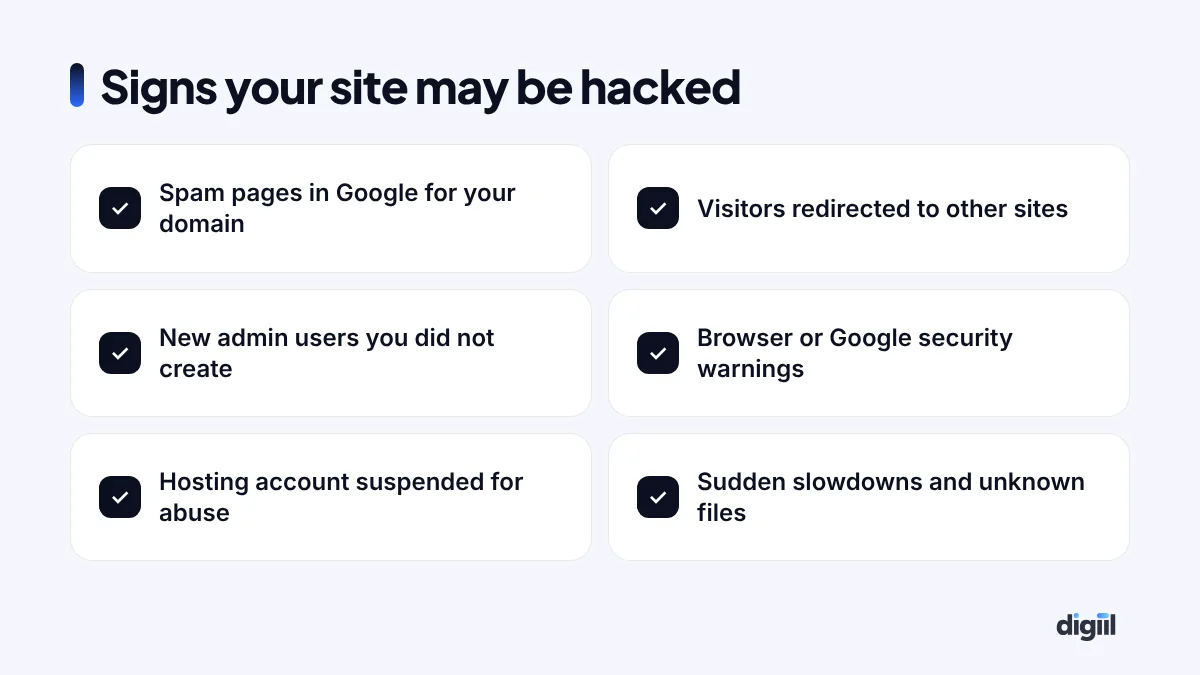
One Friday morning, people searching for a physiotherapy centre in Mirpur clicked its Google result and landed on a page selling counterfeit medicine. The site was running a contact form plugin that had not been updated in two years. A warning appeared in search within days, and cleaning the site, restoring it and getting the warning removed took most of a month.
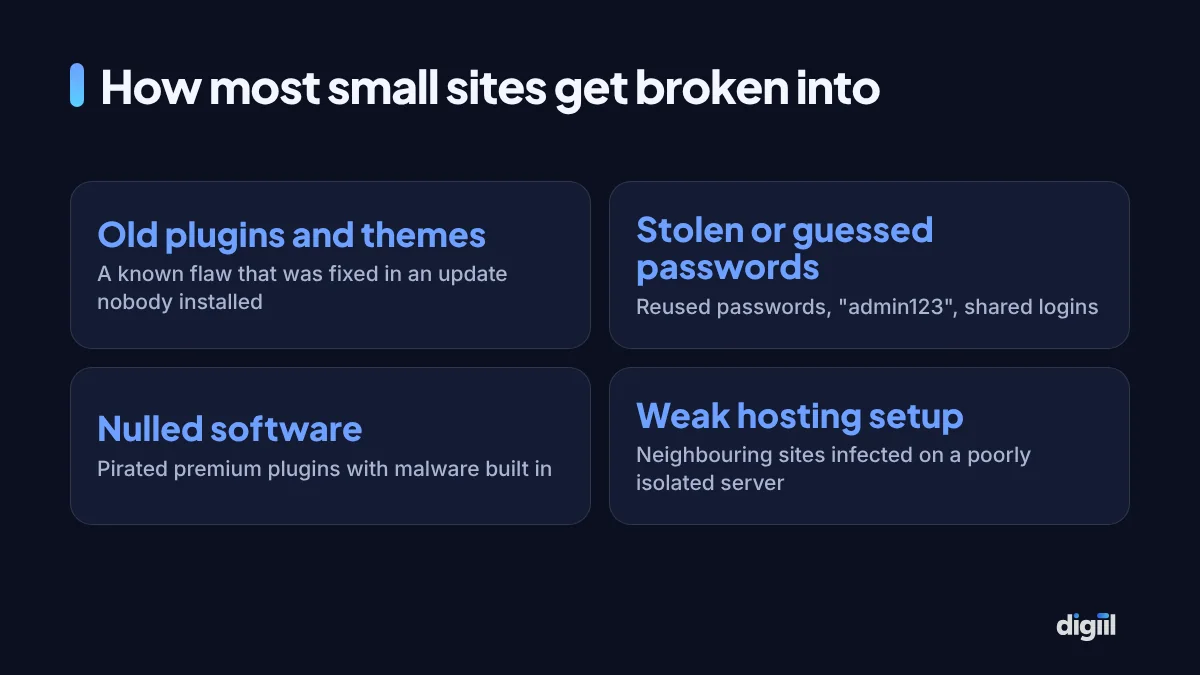
Nobody sits in a dark room choosing to hack a clinic website in Mirpur. Most attacks on WordPress are automated. Scripts scan millions of sites a day looking for a plugin version with a known flaw, a login page that accepts unlimited password guesses, or a file left open by a careless setup. When they find one, they break in, add spam pages or malware, and move on.
That is good news, because it means WordPress security is mostly about closing the doors those scripts try. The 15 steps below do that. None needs a developer, though a few are easier with one.
Updates and software
1. Keep WordPress core, themes and plugins updated
Most WordPress break-ins exploit a flaw that had already been fixed in an update. Turn on automatic minor core updates, check for plugin updates weekly, and update in a batch monthly after a backup. Our website maintenance checklist has the safe routine.
2. Remove what you do not use
Deactivated plugins and unused themes still sit on the server, and their files can still be attacked. Delete them. Keep one default WordPress theme as a fallback, updated.
3. Never install nulled plugins or themes
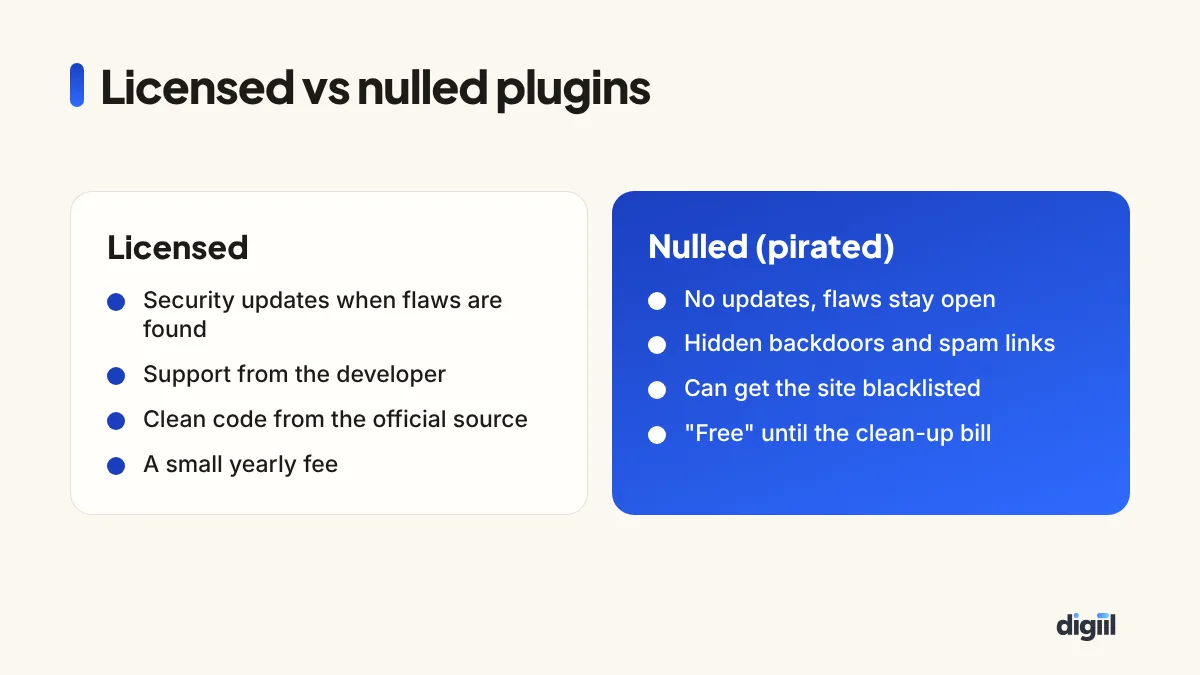
“Free download” sites offering premium plugins are the most reliable way to infect your own site. The code often contains backdoors that let attackers return whenever they like. Buy licences from the developer or use reputable free alternatives from the official WordPress directory.
4. Choose plugins carefully
Before installing, check when the plugin was last updated, how many active installations it has, and whether the developer responds to support questions. A plugin not updated in a year is a risk.
5. Run a supported PHP version
Old PHP versions stop receiving security fixes. Your hosting control panel lets you choose the version. Test the site on a newer version, ideally on a staging copy, then switch.
Logins and users
6. Use strong, unique passwords
Every admin account needs a long, unique password stored in a password manager. Reused passwords are dangerous because a leak on any other website can unlock yours.
7. Turn on two-factor authentication
Two-factor login asks for a code from an app on your phone as well as the password. It stops almost all password-guessing and stolen-password attacks. Most security plugins include it. Make it compulsory for administrators and editors.
8. Limit login attempts
Without a limit, a script can try thousands of passwords. Limit failed attempts and temporarily block repeat offenders. Many hosts and security plugins do this automatically.
9. Give each person their own account, with the lowest role needed
Do not share one admin login among staff, freelancers and agencies. Give each their own account, with Editor or Author rights unless they truly need Administrator. Delete accounts the day someone stops working with you. Avoid the username “admin”.
Server and site settings
10. Use good hosting
Cheap shared hosting can put hundreds of sites on one server, sometimes poorly separated. Choose a host that isolates accounts, keeps server software updated, offers malware scanning and daily backups, and answers support quickly. Compare in web hosting in Bangladesh.
11. Use HTTPS everywhere
A valid SSL certificate encrypts logins and form data. Most hosts provide one free. Make sure every page loads on https.
12. Add a firewall
A web application firewall blocks known attack patterns before they reach WordPress. You can use one inside a security plugin, at the server, or through a service such as Cloudflare, which also speeds up the site. See website speed optimisation.
13. Harden a few settings
- Disable the built-in file editor so nobody can edit theme and plugin code from the dashboard. Add
define('DISALLOW_FILE_EDIT', true);to wp-config.php. - Set correct file permissions. Your host can confirm the recommended values.
- Turn off XML-RPC if no app or service you use needs it.
- Keep wp-config.php and backup files out of public folders.
Backups and monitoring
14. Keep off-site backups you have tested
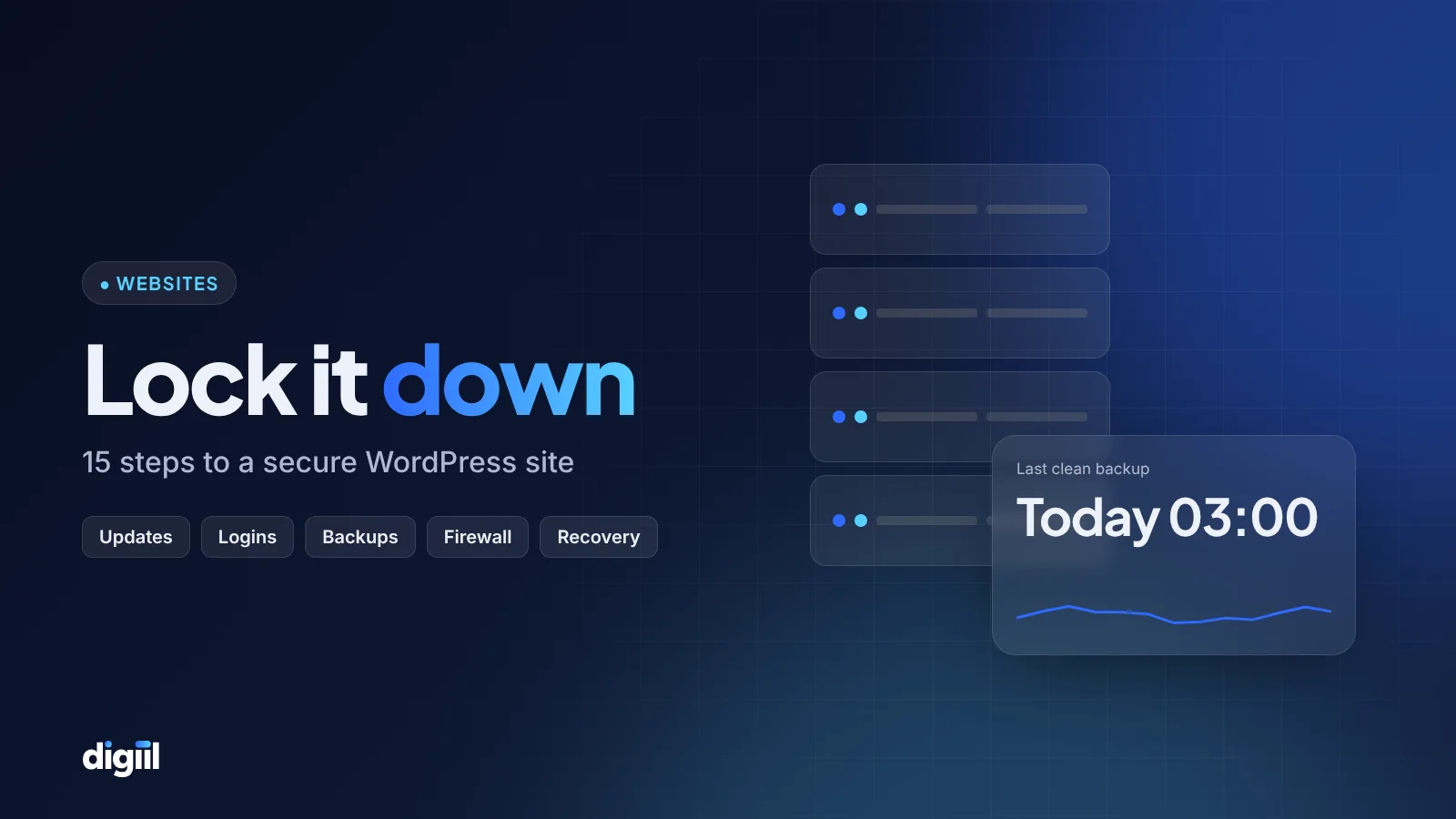
Backups are the difference between a bad afternoon and a lost business. Take daily backups for stores and active sites, keep copies off the server, keep several weeks of history, and test a restore every quarter. Hosting backups alone are not enough.
15. Monitor so you hear first
Set up uptime monitoring, security plugin alerts for file changes and new admin users, and Google Search Console, which emails you if it detects hacked content or malware. The faster you find a problem, the smaller it is.
What a good security plugin actually does
Security plugins bundle several protections. Knowing what each does helps you choose one and set it up properly rather than installing it and forgetting it.
| Feature | What it protects against | Set it to |
|---|---|---|
| Login protection | Password guessing | Limit attempts, require two-factor for admins |
| Firewall | Known attack patterns and bad bots | On, in learning mode first if offered |
| Malware scanner | Infected files, injected code | Scheduled scans with email alerts |
| File change monitoring | Quiet changes to core and plugin files | Alerts on changes outside updates |
| Activity log | Not knowing who changed what | Keep at least 30 days |
Use one security plugin, not three. Overlapping firewalls and scanners can conflict, slow the site and lock you out of your own dashboard.
Access when agencies and freelancers are involved
Most small business sites are touched by several people over the years: the developer who built it, a freelancer who fixed something, an agency running ads who needed to add a tracking code. Each leaves an account behind, and old accounts are a common way in.
- Give each outside person their own account, never your own login.
- Use the lowest role that works. A person adding blog posts needs Author or Editor, not Administrator.
- Prefer temporary access. Some plugins create logins that expire automatically after a set time.
- Keep ownership with the business. The domain, hosting and main administrator account should be registered to the business email, not an employee’s or a freelancer’s.
- Review users every quarter and remove anyone who no longer needs access.
Do not forget hosting, domain and email
An attacker does not need WordPress if they can get into the hosting control panel, the domain registrar or the email account that receives password resets. Protect these with the same care:
- Strong unique passwords and two-factor login on the hosting account, registrar and email.
- Domain lock turned on at the registrar, so the domain cannot be transferred without your approval.
- Recovery email and phone number that belong to the business and are still in use.
- Database and SFTP passwords that are not reused anywhere else.
A monthly security routine
- Confirm last night’s off-site backup exists.
- Update core, plugins and themes after that backup.
- Review the user list and remove unknown or old accounts.
- Read the security plugin’s scan results and activity log.
- Check Search Console for security issues.
- Test the contact form and checkout, since some infections break them.
Thirty minutes a month, and most small sites will never see a serious incident.
Extra care for online stores
Stores hold customer names, phone numbers and addresses, and they take payments. Use a reputable payment gateway that handles card details on its own pages so your site never stores them. Keep WooCommerce and its extensions updated with extra care, and limit who can see order data. For choosing a gateway, see payment gateways in Bangladesh.
If your site has been hacked
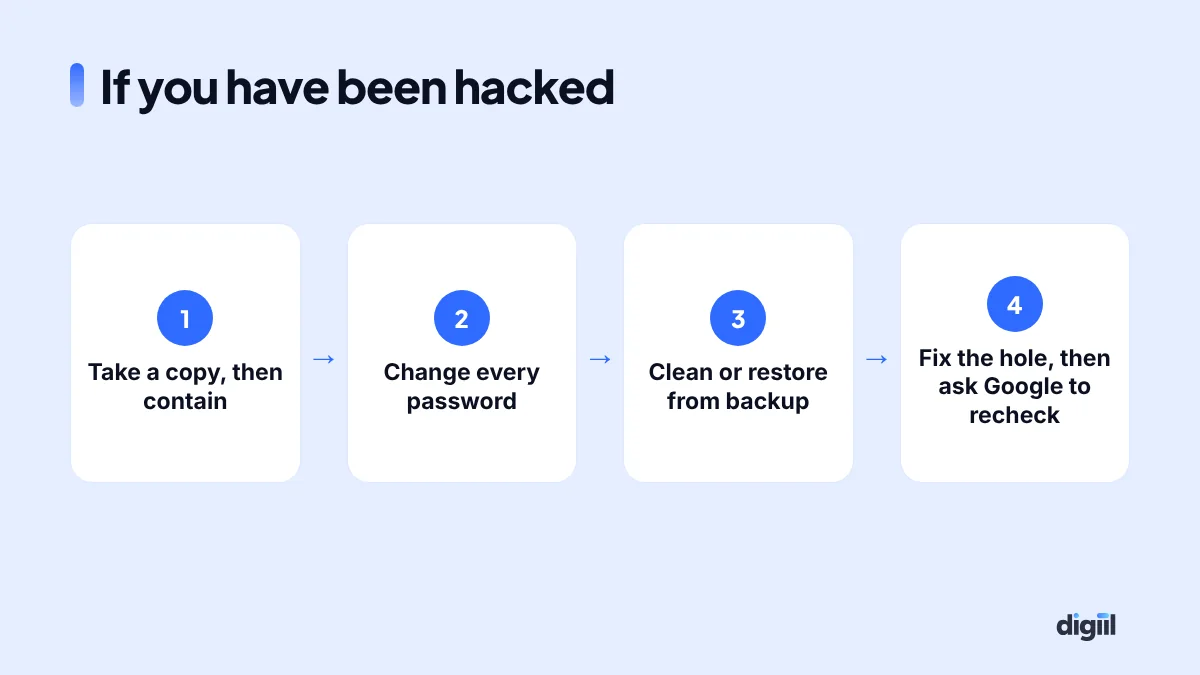
- Stay calm and take a copy of the current files and database before changing anything. It helps find how the attacker got in.
- Contain it. Put the site in maintenance mode or ask your host to restrict it if it is harming visitors.
- Change every password: WordPress users, hosting, database, FTP or SFTP, and email accounts linked to the site.
- Restore a clean backup from before the infection, if you have one. Otherwise, clean the site: replace WordPress core files, reinstall plugins and themes from official sources, remove unknown files and admin users, and scan the database for injected code.
- Close the door they used. Update everything, remove the vulnerable or nulled plugin, and turn on two-factor login.
- Request a review. If Google flagged the site, fix it and request a review in Search Console’s Security issues report.
- Watch closely for two weeks. Reinfection is common when a backdoor was missed.
If the site takes payments, holds customer data, keeps getting reinfected, or you are not sure what you are looking at, get expert help. A half-cleaned site often returns to the same state within days.
Fifteen minutes today
Any one of the first few steps above would have stopped what happened to that physiotherapy centre. None of them takes more than an afternoon.
If you do nothing else this week, do these: take an off-site backup, update everything, delete unused plugins and themes, remove old user accounts, and turn on two-factor login for every administrator. That closes most of the doors automated attacks rely on.
If you would like your WordPress site secured, monitored and maintained for you, see our WordPress development service or book a free 15-minute strategy call.
Security questions
Is WordPress secure?
WordPress core is maintained by a large security team and is updated quickly when problems are found. Most hacks come from outdated plugins, weak passwords, pirated software and poor hosting, all of which you can control.
Do I need a security plugin?
For most sites, yes. A reputable security plugin adds login protection, malware scanning, file change alerts and often a firewall. Use one, not several, because overlapping security plugins can conflict and slow the site.
How much does it cost to clean a hacked WordPress site?
It depends on how deep the infection goes and whether clean backups exist. Restoring a known-clean backup is cheapest. Manual clean-up of a heavily infected site with no backup takes much longer and costs more.
Should I hide the wp-admin login URL?
Changing the login address reduces automated login attempts and log noise, but it is not real protection by itself. Strong passwords, two-factor authentication and login rate limits matter far more.
How often should I update plugins?
Security updates should be installed within days. A weekly check and a monthly full update session, with a backup before each, works well for most business sites.

Amanat has 7+ years in digital marketing and has managed $8M+ in Google and Meta ad spend for 235+ brands in the UK, USA, Australia and Bangladesh. He holds 20+ certifications, including Digital Marketing Strategy from Harvard Business School Online. More about Amanat